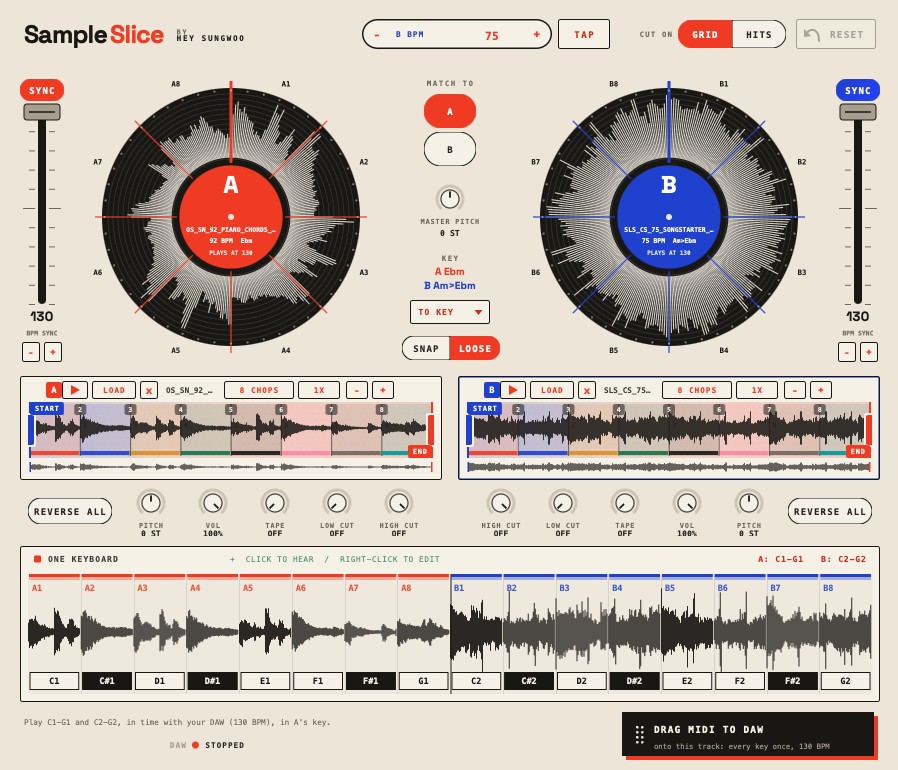
Every control in Sample Slice, in the order you'd use it. Tap a section in the menu to jump straight to it.
01
Load two samples
A sample from one song on deck A, a sample from another song on deck B.
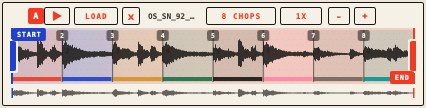
LOAD
Click to pick a sample, or drop one on the plugin. WAV, AIFF or MP3.
▶
Plays the sample's original file from START, great for tapping the tempo. Click again to stop.
×
Removes the sample from this deck.
− / +
Zoom out or in on the waveform. You can also scroll or pinch over it.
Waveform
The whole sample, cut into coloured chops. Each chop is one key on your keyboard.
02
Tempo
Sample Slice finds each sample's tempo when you load it. If it says the tempo is a guess, check it here.
BPM
The tempo of the selected sample. Type the right number if it's off.
− / +
Tempo down or up by 1 BPM.
TAP
Tap along with the sample, 4 times or more. The tempo is set when you stop.
03
Sync & your own BPM
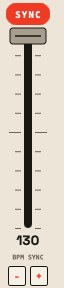
Each deck has its own tempo fader, like a DJ deck.
SYNC
On: this deck plays in time with your DAW. Turn it off to play it at your own BPM.
Tempo fader
Drag it for your own BPM. The key stays put. Double-click to go back to SYNC.
− / +
1 BPM slower or faster.
BPM SYNC / BPM MANUAL
Shows whether the deck follows your DAW or your own tempo, and the BPM it plays at.
04
In key
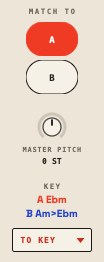
Sample Slice finds each sample's key for you. Pick which one leads and the other follows.
MATCH TO A / B
MATCH TO A moves B into A's key. MATCH TO B moves A into B's key. Both always play in time with your DAW.
TO KEY
Pick your song's key (any major or minor key) and the leading sample is pitched into it, with the other one following. Or go back to the original key.
KEY
Shows each sample's key and where it's moved to. Click it if a key was found wrong: tell Sample Slice the real key, or set it back to detect automatically.
MASTER PITCH
Moves A and B together, up to 12 semitones either way, on top of each deck's own PITCH. Double-click to reset.
05
The records
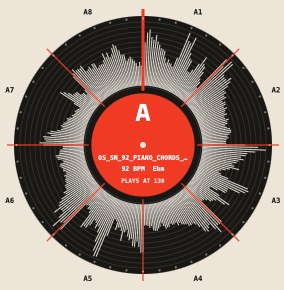
Each sample spins on its own record, cut into wedges: one wedge per chop.
Wedges
Click a wedge (A1, A2...) to hear that chop.
Slice lines
Drag a line to nudge where a chop starts. Double-click a line to put it back.
Label
The sample's name, its tempo and key, and the tempo it plays at in your song.
06
Chop
Choose how each sample is cut up. Each deck has its own settings.
CUT ON GRID / HITS
GRID cuts even chops from START. HITS starts every chop exactly on the nearest hit, a drum or a note. At the top of the plugin.
CHOPS
How many pieces this sample is cut into: 2, 4, 6, 8, 12, 16, 24 or 32. One key each. The menu can also put every slice line back on the grid.
START / END
Drag the flags on the waveform to pick the part of the sample you chop.
SNAP / LOOSE
SNAP: START and the slice lines land on the nearest hit, END on a whole bar. LOOSE: they go exactly where you drop them (or hold Option while dragging).
1X
Speed of this sample: half speed (twice as long), normal or double speed. Choose whether the pitch moves with the speed like a record, or stays put.
07
Mix each sample
A and B each get their own knobs, so either one can take the lead. Double-click a knob to reset it.
PITCH
Moves this sample up or down, up to 12 semitones either way.
VOL
This sample's volume. Saved with the plugin, so your dragged MIDI plays back with the same mix.
TAPE
Warmth, a gentle wobble and a softer top end.
LOW CUT
Thins out the bass, from off up to 1 kHz.
HIGH CUT
A darker, more sampled sound, from off down to 500 Hz.
REVERSE ALL
Plays every chop of this sample backwards inside itself; the keys stay in place. Click again to undo.
08
One keyboard
Every chop is a key. A's chops start on C1, B's sit right above them.
Keys
Each key shows its chop's name and waveform. The top right shows which notes A and B are on.
Click to hear
Click a key, or play it from your MIDI keyboard. Everything plays in time with your DAW and in the leading sample's key.
09
Edit a key
Right-click any key to change just that chop.
Reverse
Plays this chop backwards.
Mute
Silences this chop.
Stutter
x2 plays the first half twice, x4 plays the first quarter four times.
Pitch
Faster and higher, or slower and lower, like an old sampler: up to 12 semitones either way.
Reset this key
Clears the edits on this key. Reset all key edits clears them on every key.
10
Drag MIDI
Happy with your flip? Put it in your song.
DRAG MIDI TO DAW
Drag it onto your Sample Slice track: a MIDI clip that plays every key once, at your song's tempo. Then move the notes around to build your flip.
Click instead
Click it to find the MIDI file and drag it in from there.
11
The extras
Small things that make it nicer to use.
RESET
Back to the original sample: every reverse, mute, stutter and pitch edit on the keys cleared.
Status line
The line at the bottom tells you which keys to play and when a tempo needs checking.
DAW light
PLAYING, STOPPED or NOT RUNNING, so you know if your DAW is running the plugin.
Your samples stay put
Every sample you load is copied into Music / Hey Sungwoo / Sample Slice, and smaller ones are saved inside your project too. If a file goes missing, click the deck to find it again; your chops and edits are kept.
Specs
Formats
Mac AU + VST3 · Windows VST3
Systems
Apple Silicon + Intel · Windows 10/11
Works in
Instrument (put it on a software instrument track) · Logic, GarageBand, Ableton, FL Studio + more
License
One-time · 3 computers · works offline
Updates
Free
Guarantee
30 days money back
$29
One-time · Mac + Windows · 30-day money-back guarantee