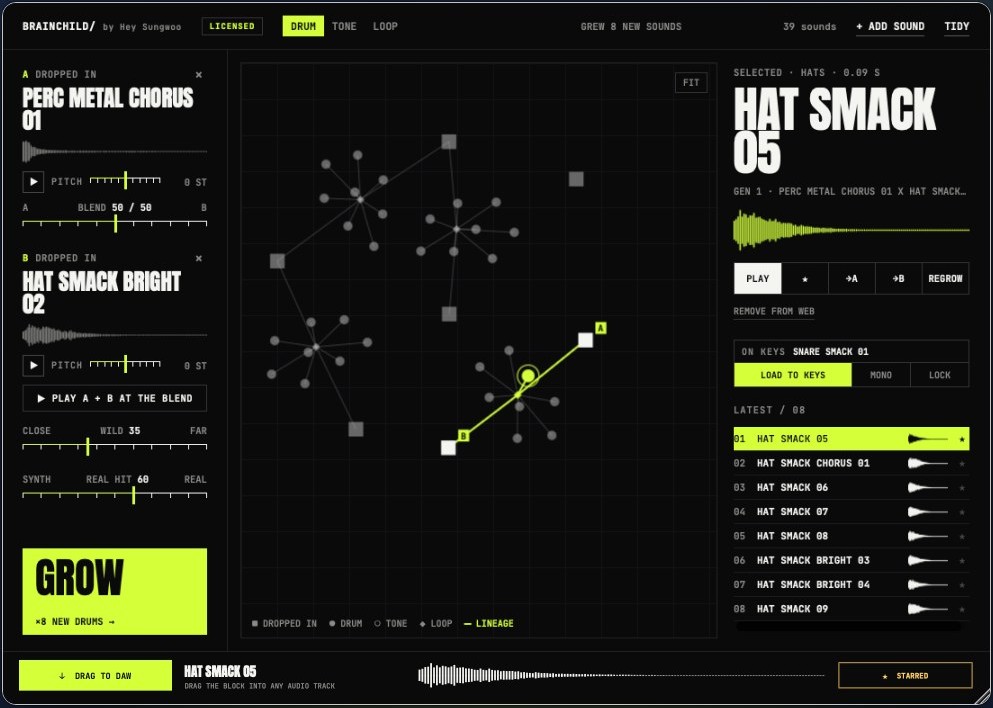
Every control in Brainchild, in the order you'd use it. Tap a section in the menu to jump straight to it.
01
Pick a mode
Choose what you want to grow before you hit GROW.
- DRUM
- New drum hits: the drum parent's hit and shape, coloured by the other sound.
- TONE
- New pitched one-shots that play in tune across your keyboard, with the other sound's smack as the attack.
- LOOP
- New loops, cut from A and B hit by hit. Drop in loops up to 30 seconds long.
02
A & B
The two parents. Everything you grow comes from these.
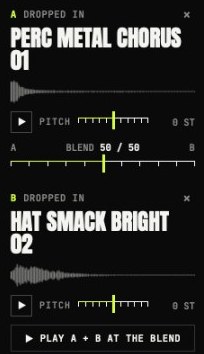
- A / B
- Drop a file from your computer or your DAW, click to browse, or drag any dot from the web. One sound on its own works too.
- Play
- Hear A or B on its own. Click again to stop.
- Pitch
- Moves A or B up or down 12 semitones. Loops keep their tempo. What you grow uses the pitch you set. Double-click = 0.
- ×
- Empties the slot.
- Blend
- How much of A vs B goes into what you grow, from all A to all B.
- Play A + B at the blend
- Hear the two together at the Blend balance, live while you move it, so you hear the mix before you grow.
- Missing · Relink
- If a sound's file can't be found on this computer, point Brainchild at it again.
03
Loops
In LOOP mode, Brainchild finds the tempo and length of your loop for you. EDIT ▸ on the slot opens the loop editor if you want to change it.
- Tempo
- Found from the hits, with help from a BPM in the file name and your song's tempo. Type to change it, or use ½ / ×2 if it guessed half or double time.
- Start / End
- Drag the markers to choose the part that loops. Drag elsewhere to scroll; scroll or pinch to zoom, or use − / +.
- Snap
- Markers snap to the beat, the bar, 1/16, the detected hits, or nothing.
- ◂ ▸
- Nudges the loop earlier or later.
- ½ / ×2
- Makes the loop half as long or twice as long.
- Loop it
- Hear your loop going round.
- Done / Cancel
- Keep your changes or leave it as it was.
04
Shape & grow
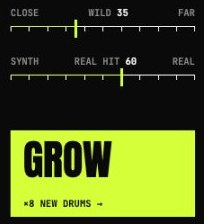
Set how far out to go, then grow. Double-click a slider to reset it.
- Wild
- From close copies of the parents to far-out variations. Starts at 35.
- Real hit
- DRUM mode: how much of the drum's own crack or click each new drum starts with. Synth = all synthesised, Real = the real hit. Starts at 60.
- Grow at project tempo
- LOOP mode: new loops are placed on your song's tempo, and the pitch stays the same. Play A + B follows it too.
- Grow
- 8 brand-new sounds, made from scratch, so there's no layering and no phasing. The button tells you what you'll get: new drums, tones or loops.
05
The family web
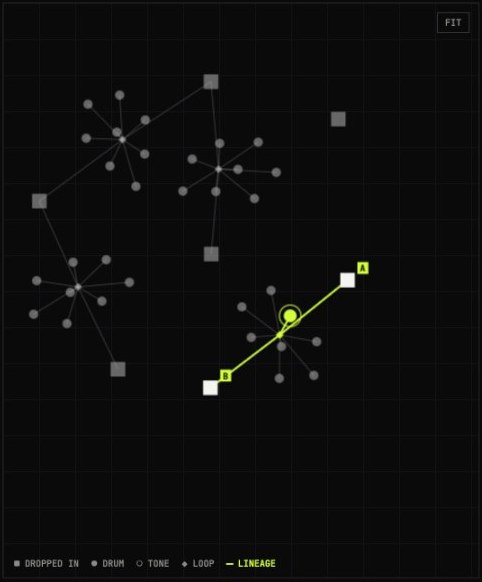
Every sound you grow shows up here, wired to its parents.
- Dots
- Square = a sound you dropped in, filled dot = drum, ring = tone, diamond = loop. Hover a dot to see its family line.
- Click
- Hear any sound and see it in the panel on the right.
- Double-click
- Regrow: 8 more children from that sound.
- Drag onto A or B
- Breed that sound again.
- Pan & zoom
- Drag empty space to move around, scroll to zoom.
- Fit
- Fits the whole web in view.
06
The selected sound
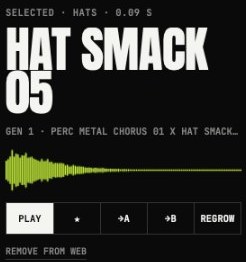
Click a dot and its name, family and actions show up here.
- Name & family
- What it is, its generation and the two sounds it came from.
- Play
- Hear it. Click again to stop. Loops keep going until you stop them.
- ★
- Star: saves it as a 24-bit WAV in your Starred folder.
- →A / →B
- Puts this sound into A or B.
- Regrow
- Grows 8 children from this sound.
- Remove from web
- Takes it off the web. Starred WAVs stay in your folder.
07
On your keyboard
Clicking a dot only auditions it. What your keyboard and MIDI play is the sound on keys.
- On keys
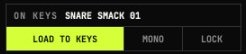
- Shows the sound your keyboard plays. Tones play in tune on every key; drums play at their own pitch on C3 and shift up or down from there.
- Load to keys
- Puts the selected sound on the keys.
- Mono
- A new note cuts the last one off. Great for kicks and 808s, and on by default for them.
- Lock
- Nothing replaces the sound on the keys until you unlock.
08
Latest
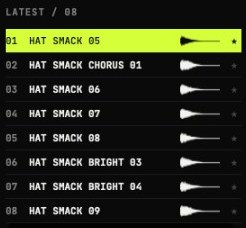
Your 8 newest sounds in one list.
- Latest / 08
- Click a row to hear it and select it.
- ★
- Star any of them right from the list.
09
Into your song
Found a keeper? Use it.

- Drag to DAW
- Drag the selected sound or loop onto an audio track. It drags a copy, so unstarring later never breaks your project.
- ★ Starred
- Opens your Starred library inside the plugin.
10
Your sound pack
Every sound you star is saved as a WAV, sorted into folders by type (Kicks, Snares, Plucks and so on).
- Search
- Find any starred sound by name.
- Folders
- Drag a row onto a folder to move it, or use the menu on the row. + NEW FOLDER makes your own. Double-click a folder to rename it.
- Rename
- Double-click a name to rename the sound (and its file).
- →A / →B
- Use a starred sound as a parent again.
- ↓ DAW
- Drag it straight into your song.
- Unstar
- Moves the WAV to the Trash.
- Show in Finder
- Opens the folder on your computer.
Specs
- Formats
- Mac AU + VST3 · Windows VST3
- Systems
- Apple Silicon + Intel · Windows 10/11
- Works in
- Logic, GarageBand, Ableton, FL Studio + more
- License
- One-time · 3 computers · works offline
- Updates
- Free
- Guarantee
- 30 days money back